
According to AlphaMoat, as of 2026-10, Google Meet has 7,324 downloads and 32 stars — ranked by downloads #3,823 among 10,914 AI skills in this ranking, and #312 of 1,069 in Development.
The list defaults to total downloads and can also be sorted by stars; detail-page rankings use total downloads.
| Platform | Downloads | Stars | Comments |
|---|---|---|---|
| ClawHub ↗ | 7.3K | 32 | - |
| SkillHub ↗ | 5.4K | 32 | — |
Platforms count differently and update at different times.
What this skill does
Google Meet API integration with managed OAuth. Create meeting spaces, inspect conference records, retrieve recordings and transcripts, and manage meeting pa...
Monthly Trend
The counting method changed in 2026-09: skills with the same name are now counted separately by author, and the full catalog is covered. Dashed lines show months before the change; they are not compared with later months, and no growth is computed across the change.
| Month | Downloads | MoM | Stars |
|---|---|---|---|
| 2026-10 | 7.3K | — | 32 |
| 2026-09 | 7.2K | — | 32 |
| 2026-08 | 7.0K | +1.9% | 32 |
| 2026-07 | 6.9K | +264.5% | 32 |
| 2026-06 | 1.9K | +53.5% | 32 |
| 2026-05 | 1.2K | — | 6 |
SKILL.md (original)
The author’s original file, shown as plain text without edits or review by AlphaMoat. Links are not clickable; check commands before running them. Fetched 2026-11-20.
--- name: google-meet-meetings description: Google Meet API integration with managed OAuth. Create meeting spaces, inspect conference records, retrieve recordings and transcripts, and manage meeting participants. Use this skill when users want to manage Google Meet conferences or extract meeting artifacts. --- # Google Meet  Access Google Meet via the Google Meet REST API with managed OAuth authentication. Create meeting spaces, inspect conference records, retrieve recordings and transcripts, and manage participants.
Show all (306 lines)Show less
This skill uses [ClawLink](https://claw-link.dev/?utm_source=clawhub&utm_medium=referral&utm_content=google-meet-meetings) for hosted connection flows and credentials so you do not need to configure Google Meet API access yourself.
### Setup in 3 Steps
| Step 1: Install | Step 2: Pair Account | Step 3: Connect Google Meet |
|:---:|:---:|:---:|
| 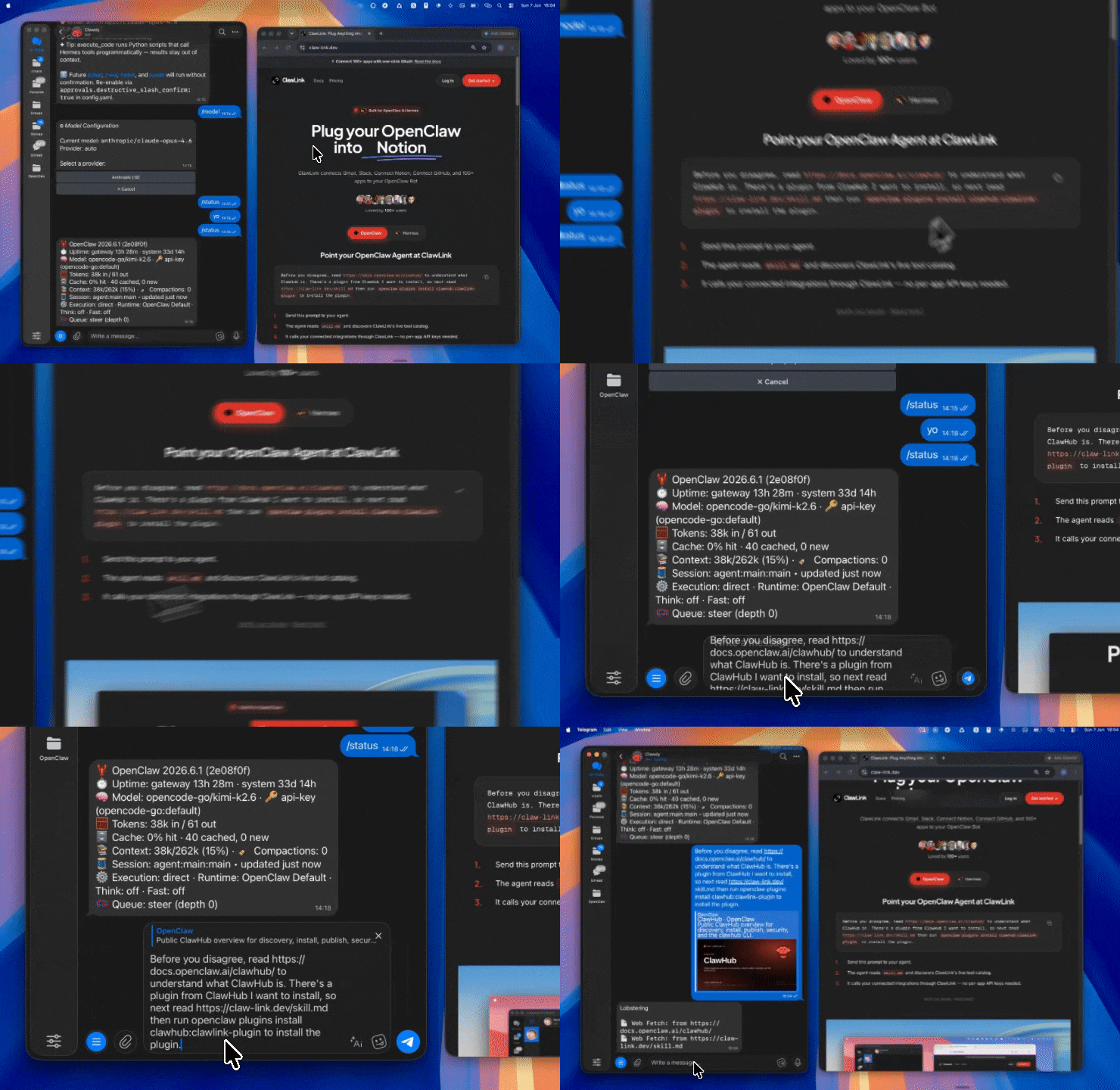 | 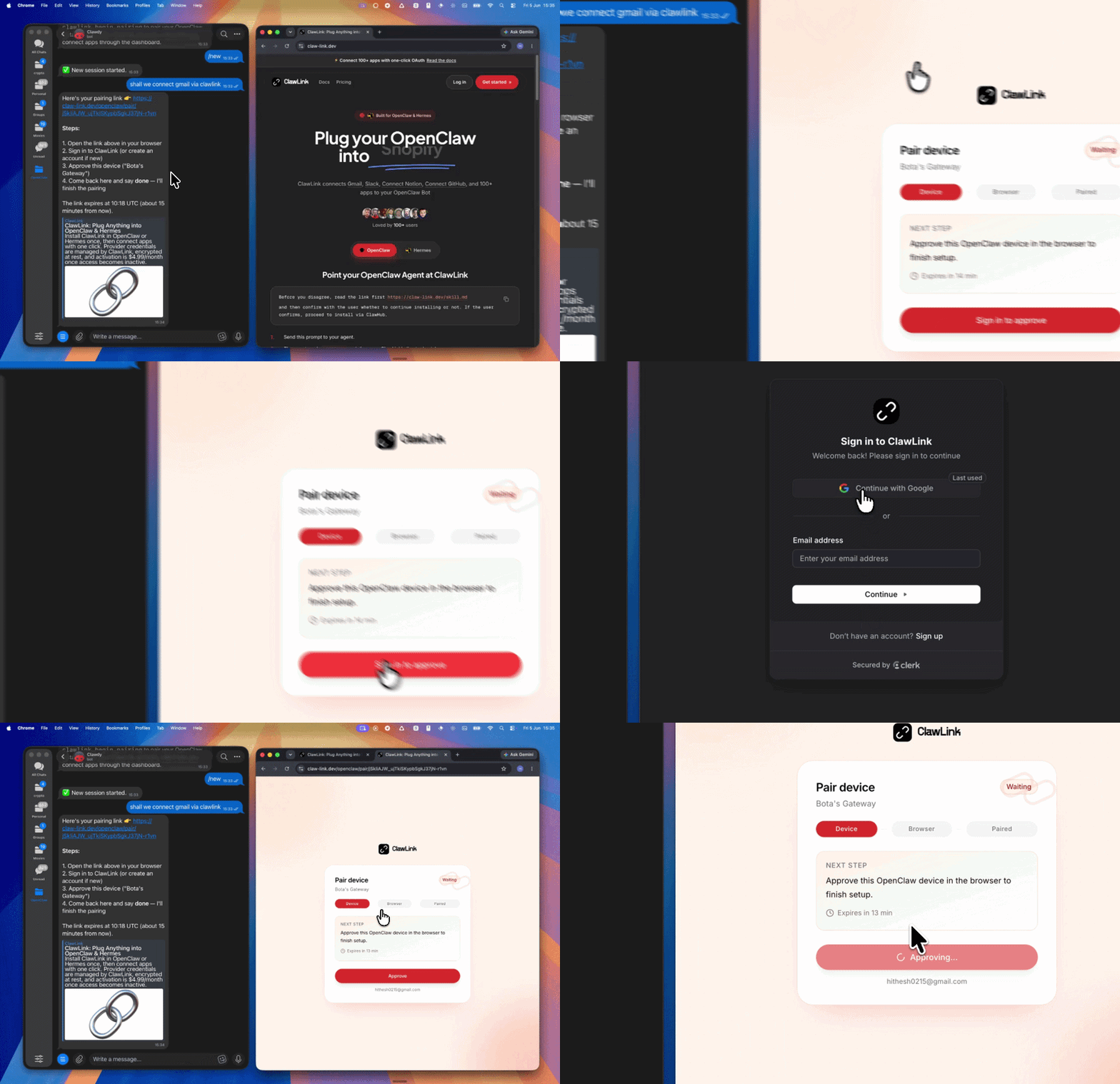 | *App-specific connection GIF coming soon* |
| Run the install command in OpenClaw | Sign in and approve the device | Open the dashboard and connect Google Meet |
## How It Works
```
┌─────────────────┐ ┌──────────────┐ ┌──────────────────┐
│ OpenClaw │────▶│ ClawLink │────▶│ Google Meet │
│ (User Chat) │ │ (OAuth) │ │ (Meet API) │
└─────────────────┘ └──────────────┘ └──────────────────┘
│ │ │
│ 1. Install Plugin │ │
│ 2. Pair Device │ │
│ 3. Connect Meet │ │
│ │ 4. Secure Token │
│ │ 5. Proxy Requests │
│ │ │
▼ ▼ ▼
┌──────────┐ ┌──────────┐ ┌──────────┐
│ SKILL │ │ Dashboard│ │ Google │
│ File │ │ Auth │ │ Meet │
└──────────┘ └──────────┘ └──────────┘
```
## Install
Install the verified ClawLink plugin from ClawHub. After the user confirms, complete the full setup so ClawLink tools are visible in the next OpenClaw chat.
```bash
openclaw plugins install clawhub:clawlink-plugin
openclaw config set tools.alsoAllow '["clawlink-plugin"]' --strict-json
openclaw gateway restart
```
Then tell the user: "OpenClaw has been restarted. Send `/new` as a standalone message to start a fresh chat, then ask for Google Meet again."
## Quick Start
```bash
# Create a new meeting space
clawlink_call_tool --tool "googlemeet_create_meet" --params '{}'
# List conference records
clawlink_call_tool --tool "googlemeet_list_conference_records" --params '{}'
# Get a meeting space details
clawlink_call_tool --tool "googlemeet_get_meet" --params '{"name": "spaces/YOUR_SPACE_ID"}'
```
## Authentication
All Google Meet tool calls are authenticated automatically by ClawLink using the user's connected Google account.
**No API key is required in chat.** ClawLink stores the OAuth token securely and injects it into every Google Meet API request on the user's behalf.
### Getting Connected
1. Install the ClawLink plugin (see Install above).
2. Pair the plugin with `clawlink_begin_pairing` if it is not configured yet.
3. Open https://claw-link.dev/dashboard?add=google-meet and connect Google Meet.
4. Call `clawlink_list_integrations` to verify the connection is active.
## Connection Management
### List Connections
```bash
clawlink_list_integrations
```
**Response:** Returns all connected integrations. Look for `google-meet` in the list.
### Verify Connection
```bash
clawlink_list_tools --integration google-meet
```
**Response:** Returns the live tool catalog for Google Meet.
### Reconnect
If Google Meet tools are missing or the connection shows an error:
1. Direct the user to https://claw-link.dev/dashboard?add=google-meet
2. After they confirm, call `clawlink_list_integrations` to verify
3. Then call `clawlink_list_tools --integration google-meet`
## Security & Permissions
- Access is scoped to meeting spaces and conference records the authenticated user has access to.
- **Write operations require explicit user confirmation.** Before executing any create, update, or delete call, confirm the target resource and intended effect with the user.
- Ending an active conference is a high-impact action and must always be confirmed.
- Recordings and transcripts are subject to the organizer's domain policies — they may not be available for all meetings.
## Tool Reference
### Meeting Space Management
| Tool | Description | Mode |
|------|-------------|------|
| `googlemeet_create_meet` | Create a new Meet space with optional configuration | Write |
| `googlemeet_get_meet` | Retrieve details of a Meet space by its identifier | Read |
| `googlemeet_update_space` | Update an existing Meet space's settings | Write |
| `googlemeet_end_active_conference` | End an ongoing conference in a specified space | Write |
### Conference Records
| Tool | Description | Mode |
|------|-------------|------|
| `googlemeet_list_conference_records` | List past conference records, optionally filtered | Read |
| `googlemeet_get_conference_record_by_name` | Get details for a specific conference record | Read |
### Participants
| Tool | Description | Mode |
|------|-------------|------|
| `googlemeet_list_participants` | List all participants in a conference record | Read |
| `googlemeet_list_participant_sessions` | List all join/leave sessions for a participant | Read |
| `googlemeet_get_participant_session` | Get details of a specific participant session | Read |
### Recordings
| Tool | Description | Mode |
|------|-------------|------|
| `googlemeet_list_recordings` | List recording resources for a conference record | Read |
| `googlemeet_get_recordings_by_conference_record_id` | Get all recordings for a specific conference | Read |
### Transcripts
| Tool | Description | Mode |
|------|-------------|------|
| `googlemeet_get_transcripts_by_conference_record_id` | List all transcripts for a conference | Read |
| `googlemeet_get_transcript` | Get a specific transcript by resource name | Read |
| `googlemeet_list_transcript_entries` | List structured transcript entries (speaker, time, text) | Read |
| `googlemeet_get_transcript_entry` | Get a specific transcript entry by resource name | Read |
## Code Examples
### Create a new meeting space
```bash
clawlink_call_tool --tool "googlemeet_create_meet" \
--params '{
"config": {
"accessType": "OPEN",
"entryPointAccess": "anyone"
}
}'
```
### List conference records
```bash
clawlink_call_tool --tool "googlemeet_list_conference_records" \
--params '{
"page_size": 20
}'
```
### Get meeting space details
```bash
clawlink_call_tool --tool "googlemeet_get_meet" \
--params '{
"name": "spaces/YOUR_SPACE_ID"
}'
```
### List participants in a conference
```bash
clawlink_call_tool --tool "googlemeet_list_participants" \
--params '{
"parent": "conferenceRecords/YOUR_CONFERENCE_RECORD_ID"
}'
```
### Get recordings for a conference
```bash
clawlink_call_tool --tool "googlemeet_get_recordings_by_conference_record_id" \
--params '{
"conference_record_id": "YOUR_CONFERENCE_RECORD_ID"
}'
```
### End an active conference
```bash
clawlink_call_tool --tool "googlemeet_end_active_conference" \
--params '{
"space_name": "spaces/YOUR_SPACE_ID"
}'
```
## Discovery Workflow
1. Call `clawlink_list_integrations` to confirm Google Meet is connected.
2. Call `clawlink_list_tools --integration google-meet` to see the live catalog.
3. Treat the returned list as the source of truth. Do not guess or assume what tools exist.
4. If the user describes a capability but the exact tool is unclear, call `clawlink_search_tools` with a short query and integration `google-meet`.
5. If no Google Meet tools appear, direct the user to https://claw-link.dev/dashboard?add=google-meet.
## Execution Workflow
```
┌─────────────────────────────────────────────────────────────┐
│ READ OPERATIONS (Safe) │
│ list → get → call │
│ │
│ Example: List conferences → Get details → Show results │
└─────────────────────────────────────────────────────────────┘
│
▼
┌─────────────────────────────────────────────────────────────┐
│ WRITE OPERATIONS (Require Confirmation) │
│ describe → preview → confirm → call │
│ │
│ Example: Describe tool → Preview changes → User approves │
│ → Execute update │
└─────────────────────────────────────────────────────────────┘
```
1. For unfamiliar tools, ambiguous requests, or any write action, call `clawlink_describe_tool` first.
2. Use the returned guidance, schema, `whenToUse`, `askBefore`, `safeDefaults`, `examples`, and `followups` to shape the call.
3. Prefer read, list, and get operations before writes.
4. For writes or anything marked as requiring confirmation, call `clawlink_preview_tool` first.
5. Execute with `clawlink_call_tool`. Pass confirmation only after the preview matches the user's intent.
6. If the tool call fails, report the real error. Do not invent results or restate the failure as a missing capability unless the live catalog supports that conclusion.
## Notes
- `create_meet` does not attach to any calendar event — calendar linking requires a separate Calendar tool call.
- Capture `meetingUri`, `meetingCode`, and `space.name` from the create response immediately for downstream lookups.
- Newly created spaces may return incomplete data — retry after 1–3 seconds if needed.
- Recordings and transcripts require that recording/transcription was enabled and permitted by the organizer's domain policies.
- After a meeting ends, recordings and transcripts may take several minutes to process — an empty result may be temporary.
- `end_active_conference` requires the `space_name` parameter and immediately drops all participants.
- HTTP 429 may occur under rapid calls — apply exponential backoff.
## Error Handling
| Status / Error | Meaning |
|----------------|---------|
| Tool not found | The tool name does not exist in the current catalog. Verify with `clawlink_list_tools --integration google-meet`. |
| Missing connection | Google Meet is not connected. Direct the user to https://claw-link.dev/dashboard?add=google-meet. |
| `NOT_FOUND` | Meeting space or conference record does not exist. Check the name/ID. |
| `INVALID_ARGUMENT` | Invalid parameter or missing required field. Review the tool schema with `clawlink_describe_tool`. |
| Write rejected | User did not confirm a write action. Always confirm before executing writes. |
### Troubleshooting: Tools Not Visible
1. Check that the ClawLink plugin is installed:
```bash
openclaw plugins list
```
2. If the plugin is installed but tools are missing, tell the user to send `/new` as a standalone message to reload the catalog.
3. If a fresh chat does not help, run:
```bash
openclaw config set tools.alsoAllow '["clawlink-plugin"]' --strict-json
openclaw gateway restart
```
4. After restart, tell the user to send `/new` again and retry.
### Troubleshooting: Invalid Tool Call
1. Ensure the integration slug is exactly `google-meet`.
2. Use `clawlink_describe_tool` to verify parameter names and types before calling.
3. For write operations, always call `clawlink_preview_tool` first.
## Resources
- [Google Meet API Overview](https://developers.google.com/meet/rest/reference)
- [Conference Records](https://developers.google.com/meet/rest/reference/v1/conferenceRecords)
- [Spaces](https://developers.google.com/meet/rest/reference/v1/spaces)
- ClawLink: https://claw-link.dev/?utm_source=clawhub&utm_medium=referral&utm_content=google-meet-meetings
- ClawLink Docs: https://docs.claw-link.dev/openclaw
- ClawLink Verification: https://claw-link.dev/verify
## Related Skills
- [Google Calendar](https://clawhub.ai/hith3sh/google-calendar-scheduling) — For calendar scheduling and event management
---
**Powered by [ClawLink](https://claw-link.dev/?utm_source=clawhub&utm_medium=referral&utm_content=google-meet-meetings)** — an integration hub for OpenClaw
Popular in Development
【全栈能力】编程大神.Skill:面向复杂真实项目的高阶全栈编程助手。不止生成代码,而是从一句目标接手陌生代码库,拆解需求、补齐实现、追到根因、完成重构、联调前后端,并把结果推进到能运行、能验证、能交付。覆盖 Web、后端、脚本、iOS、安卓、鸿蒙 ArkUI、微信小程序及其他技术栈,支持中英文工程、疑难 Bug、跨模块任务和长任务续做;用构建、日志、真实入口、设备或接口证据说明结果。仅问概念时直接回答,要求落地时持续推进到验收或明确阻塞。
编程专家 Pro:融合编程专家 2.0.3 工程专题与编程大神的鸿蒙 ArkTS/ArkUI、微信小程序和小游戏开发资料。用于项目实现、根因调试、审查、重构、测试、架构性能分析及多端开发验证。支持自然语言和 @专题标识,按任务读取包内知识;只问概念时直接回答。
编程专家.Skill P8级编程助手,25年实战经验技能Skill,全栈:Java/Php网站/软件项目、API设计、Bug诊断、代码生成、代码审查、重构、测试用例、性能基准、技术选型、文档生成、任务拆解、Spec驱动、Karpathy规范、CMS二次开发、前端设计、MySQL/Mariadb、项目知识图谱,以及工程纪律层(根因调试硬闭环、阶段导航、事故复盘/SLO、威胁建模/供应链安全、生产就绪/渐进式发布、AI编码治理、面向Agent代码可读性、LLM应用安全)。支持 @标识 显式调用跳过路由。
编程专家.Skill P8级编程助手,25年实战经验技能Skill,全栈:Java/Php网站/软件项目、API设计、Bug诊断、代码生成、代码审查、重构、测试用例、性能基准、技术选型、文档生成、任务拆解、Spec驱动、Karpathy规范、CMS二次开发、前端设计、MySQL/Mariadb、项目知识图谱,以及工程纪律层(根因调试硬闭环、阶段导航、事故复盘/SLO、威胁建模/供应链安全、生产就绪/渐进式发布、AI编码治理、面向Agent代码可读性、LLM应用安全)。支持 @标识 显式调用跳过路由。
工程专题、鸿蒙与微信小程序开发的集成派生版
编程专家 Pro:融合编程专家 2.0.3 工程专题与编程大神的鸿蒙 ArkTS/ArkUI、微信小程序和小游戏开发资料。用于项目实现、根因调试、审查、重构、测试、架构性能分析及多端开发验证。支持自然语言和 @专题标识,按任务读取包内知识;只问概念时直接回答。
适用场景:全栈编程助手。接到需求先读现有代码和约束,再动手:Java/PHP 开发、接口设计、缺陷定位、代码评审、重构、测试用例、性能排查、技术选型与文档产出,也做 CMS 二次开发、前端页面和 MySQL 调优。每次改动先给方案和影响范围,改完必须跑验证,交付附交接说明。适合要把代码真正跑通、而不是只要片段的场景。写完代码常要配套的造价、法律、工程文档,站内已有现成技能,用「查找技能」按需求找即可。
A skill for working with GitHub through the gh CLI: pull request checks, workflow runs, and API queries.
More from Jay
Manage Instagram Business and Creator accounts via the Instagram Graph API. Publish posts and carousels, retrieve media and insights, moderate comments, send DMs, and manage story content. Use this skill when users want to manage Instagram content, analyze engagement, or automate social media workflows.
Facebook Pages is a skill guide for accessing Facebook Page tools through ClawLink-managed OAuth.
Google Sheets API integration with managed OAuth. Create spreadsheets, read and write cell values, manage sheets, append rows, create charts, and automate da...
Google Drive API integration with managed OAuth. Search Drive files, manage permissions, organize folders, upload and download files, and handle sharing chan...
Manage LinkedIn presence via the LinkedIn API. Create posts and articles, manage comments, handle media uploads, search ad targeting entities, and retrieve user profile and image data.
Data as of 2026-10. Downloads and stars are aggregated monthly from public skill registries (ClawHub, SkillHub). See data methodology.