
作者:Jay更新於 2026-06-09共 8 個版本 · 最新版本釋出於 2026-06-09canva-designs@clawhub_hith3sh/canva-designs
圖片生成視覺素材#Content Creation
據 AlphaMoat 統計,截至 2026-10,Canva 累計下載 7,629 次、獲 33 個星標,按累計下載量在本次參與排名的 10,914 個 AI 技能中排名第 3,668 位,在「設計創意」分類(1,116 個)中排名第 478 位。
列表預設按累計下載量排序,也可按星標排序;詳情頁排名按累計下載量計算。
| 平台 | 累計下載 | 星標 | 評論 |
|---|---|---|---|
| ClawHub ↗ | 7629 | 33 | - |
| SkillHub ↗ | 5750 | 33 | — |
各平台的計數口徑不同,統計時間不一致。
透過 Canva Connect API 建立和管理 Canva 設計、上傳資源、匯出內容以及管理品牌模板,適用於需要自動化的使用者場景。
2026-09 起統計方法調整:同名技能按作者分別統計,並覆蓋全部技能。圖中虛線為調整前的月份,與之後的資料不直接比較,也不計算跨越調整的增長。
| 月份 | 累計下載 | 環比 | 星標 |
|---|---|---|---|
| 2026-10 | 7629 | — | 33 |
| 2026-09 | 7394 | — | 33 |
| 2026-08 | 7218 | +3.3% | 33 |
| 2026-07 | 6986 | +261.8% | 33 |
| 2026-06 | 1931 | +56.5% | 32 |
| 2026-05 | 1234 | — | 6 |
以下是作者釋出的原始檔案,按純文字顯示,本站未做修改或稽核;其中的連結不可點選,命令請核實後再執行。抓取於 2026-11-20。
--- name: canva-designs description: Create and manage Canva designs, upload assets, export content, and manage brand templates via the Canva Connect API. Use this skill when users want to automate design workflows, manage brand assets, or coordinate Canva content creation from chat. --- # Canva  Access Canva via the Canva Connect API with managed OAuth authentication. Create designs, upload assets, export content, and manage brand templates from chat.
This skill uses [ClawLink](https://claw-link.dev/?utm_source=clawhub&utm_medium=referral&utm_content=canva-designs) for hosted connection flows and credentials so you do not need to configure Canva API access yourself.
### Setup in 3 Steps
| Step 1: Install | Step 2: Pair Account | Step 3: Connect Canva |
|:---:|:---:|:---:|
| 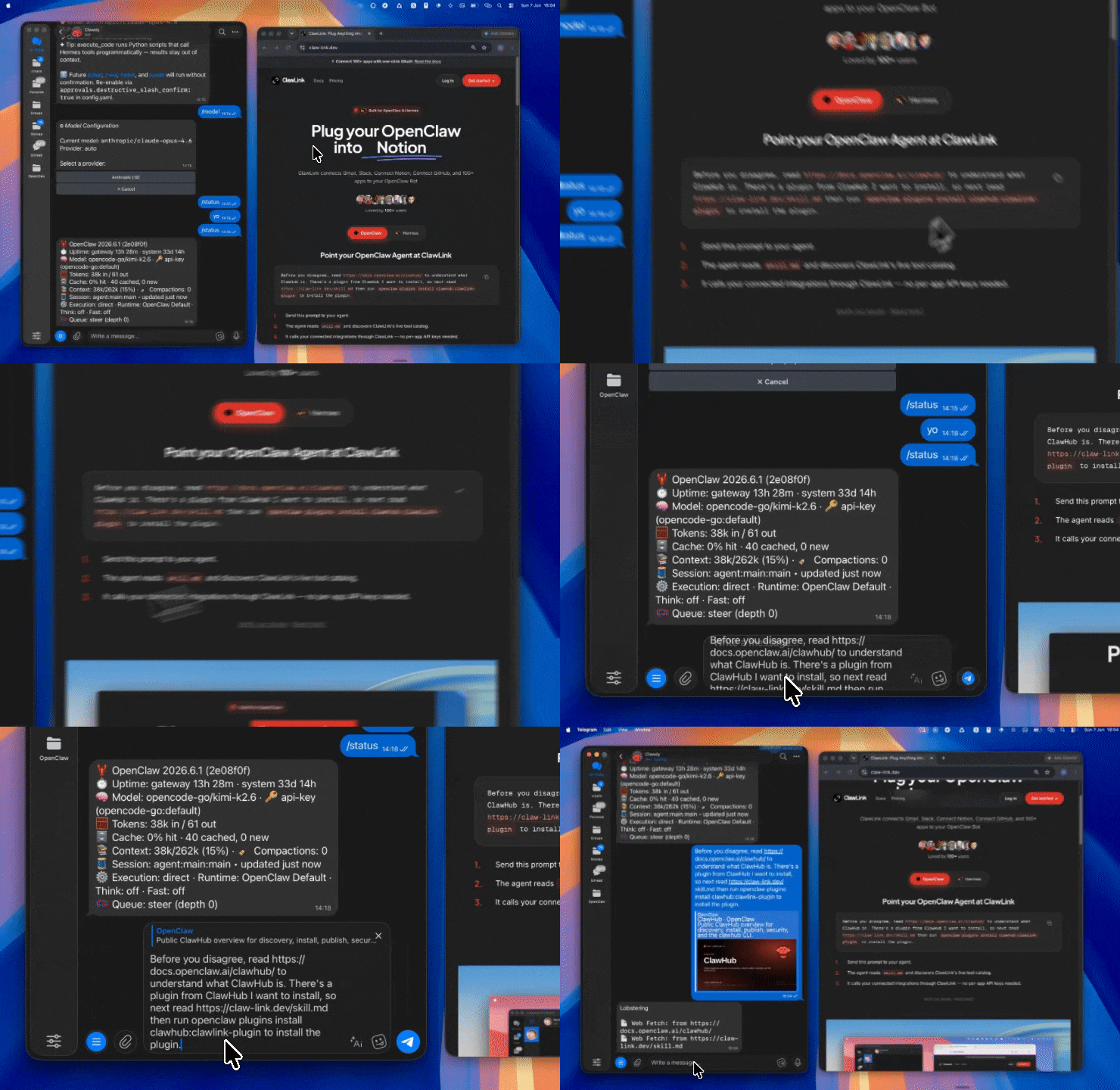 | 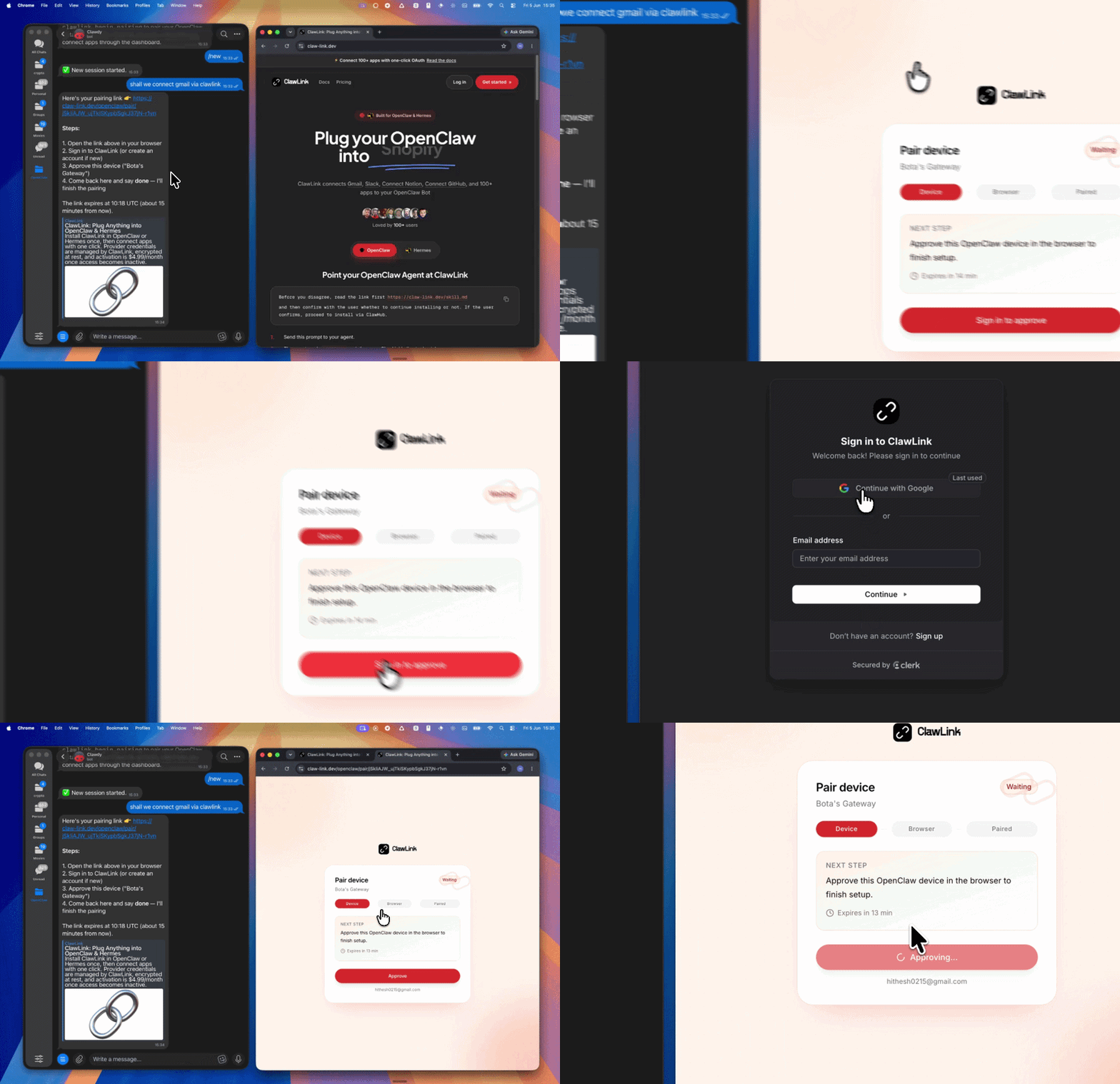 | *App-specific connection GIF coming soon* |
| Run the install command in OpenClaw | Sign in and approve the device | Open the dashboard and connect Canva |
## How It Works
```
┌─────────────────┐ ┌──────────────┐ ┌──────────────────┐
│ OpenClaw │────▶│ ClawLink │────▶│ Canva Connect │
│ (User Chat) │ │ (OAuth) │ │ API │
└─────────────────┘ └──────────────┘ └──────────────────┘
│ │ │
│ 1. Install Plugin │ │
│ 2. Pair Device │ │
│ 3. Connect Canva │ │
│ │ 4. Secure Token │
│ │ 5. Proxy Requests │
│ │ │
▼ ▼ ▼
┌──────────┐ ┌──────────┐ ┌──────────┐
│ SKILL │ │ Dashboard│ │ Canva │
│ File │ │ Auth │ │ Hub │
└──────────┘ └──────────┘ └──────────┘
```
## Install
Install the verified ClawLink plugin from ClawHub. After the user confirms, complete the full setup so ClawLink tools are visible in the next OpenClaw chat.
```bash
openclaw plugins install clawhub:clawlink-plugin
openclaw config set tools.alsoAllow '["clawlink-plugin"]' --strict-json
openclaw gateway restart
```
Then tell the user: "OpenClaw has been restarted. Send `/new` as a standalone message to start a fresh chat, then ask for Canva again."
## Quick Start
```bash
# List integrations
clawlink_list_integrations
# List Canva tools
clawlink_list_tools --integration canva
# Search for a specific tool
clawlink_search_tools --query "design" --integration canva
```
## Authentication
All Canva tool calls are authenticated automatically by ClawLink using the user's connected Canva account.
**No API key is required in chat.** ClawLink stores the OAuth token securely and injects it into every Canva API request on the user's behalf.
### Getting Connected
1. Install the ClawLink plugin (see Install above).
2. Pair the plugin with `clawlink_begin_pairing` if it is not configured yet.
3. Open https://claw-link.dev/dashboard?add=canva and connect Canva.
4. Call `clawlink_list_integrations` to verify the connection is active.
## Connection Management
### List Connections
```bash
clawlink_list_integrations
```
**Response:** Returns all connected integrations. Look for `canva` in the list.
### Verify Connection
```bash
clawlink_list_tools --integration canva
```
**Response:** Returns the live tool catalog for Canva.
### Reconnect
If Canva tools are missing or the connection shows an error:
1. Direct the user to https://claw-link.dev/dashboard?add=canva
2. After they confirm, call `clawlink_list_integrations` to verify
3. Then call `clawlink_list_tools --integration canva`
## Discovery Workflow
1. Call `clawlink_list_integrations` to confirm Canva is connected.
2. Call `clawlink_list_tools --integration canva` to see the live catalog.
3. Treat the returned list as the source of truth. Do not guess or assume what tools exist.
4. If the user describes a capability but the exact tool is unclear, call `clawlink_search_tools` with a short query and integration `canva`.
5. If no Canva tools appear, direct the user to https://claw-link.dev/dashboard?add=canva.
## Execution Workflow
```
┌─────────────────────────────────────────────────────────────┐
│ READ OPERATIONS (Safe) │
│ list → get → search → describe → call │
│ │
│ Example: List designs → Get metadata → Show results │
└─────────────────────────────────────────────────────────────┘
│
▼
┌─────────────────────────────────────────────────────────────┐
│ WRITE OPERATIONS (Require Confirmation) │
│ list → get → describe → preview → confirm → call │
│ │
│ Example: Describe tool → Preview changes → User approves │
│ → Execute update │
└─────────────────────────────────────────────────────────────┘
```
1. For unfamiliar tools, ambiguous requests, or any write action, call `clawlink_describe_tool` first.
2. Use the returned guidance, schema, `whenToUse`, `askBefore`, `safeDefaults`, `examples`, and `followups` to shape the call.
3. Prefer read, list, search, and get operations before writes when that reduces ambiguity.
4. For writes or anything marked as requiring confirmation, call `clawlink_preview_tool` first.
5. Execute with `clawlink_call_tool`. Pass confirmation only after the preview matches the user's intent.
6. If the tool call fails, report the real error. Do not invent results or restate the failure as a missing capability unless the live catalog supports that conclusion.
## Tool Reference
Tools are available dynamically from the live ClawLink catalog. Call `clawlink_list_tools --integration canva` to see the full list.
### Typical Tool Categories
| Category | Description | Mode |
|----------|-------------|------|
| Designs | Create, list, get, and manage designs | Read/Write |
| Assets | Upload and manage brand assets | Read/Write |
| Exports | Export designs in various formats | Write |
| Brand Templates | Manage brand templates | Read/Write |
| User Profile | Get current user details | Read |
## Code Examples
### List designs
```bash
clawlink_call_tool --tool "canva_list_designs" \
--params '{
"limit": 20
}'
```
### Get design metadata
```bash
clawlink_call_tool --tool "canva_get_design" \
--params '{
"design_id": "YOUR_DESIGN_ID"
}'
```
### Upload an asset
```bash
clawlink_call_tool --tool "canva_upload_asset" \
--params '{
"name": "brand-logo.png",
"asset_type": "image"
}'
```
### Export a design
```bash
clawlink_call_tool --tool "canva_create_export" \
--params '{
"design_id": "YOUR_DESIGN_ID",
"format": "PNG"
}'
```
## Security& Permissions
- Access is scoped to the connected Canva account's designs and assets.
- **All write operations require explicit user confirmation.** Before executing any create, update, or delete call, confirm the target resource and intended effect with the user.
- Destructive actions (deleting designs, assets) are marked as high-impact and must be confirmed.
- Brand template management affects team-wide design standards; confirm before changes.
## Notes
- Canva API has rate limits; avoid excessive API calls in short succession.
- Export operations may be asynchronous; poll for completion if needed.
- Some Canva features require specific subscription plans (Canva Pro, Teams).
- Asset uploads are subject to file size and format restrictions.
## Error Handling
| Status / Error | Meaning |
|----------------|---------|
| Tool not found | The tool name does not exist in the current catalog. Verify with `clawlink_list_tools --integration canva`. |
| Missing connection | Canva is not connected. Direct the user to https://claw-link.dev/dashboard?add=canva. |
| `Design not found` | The design ID does not exist or is not accessible. |
| `Export pending` | Export is still processing. Poll for completion. |
| `Upload failed` | The file could not be uploaded. Check file format and size. |
| Write rejected | User did not confirm a write action. Always confirm before executing writes. |
### Troubleshooting: Tools Not Visible
1. Check that the ClawLink plugin is installed:
```bash
openclaw plugins list
```
2. If the plugin is installed but tools are missing, tell the user to send `/new` as a standalone message to reload the catalog.
3. If a fresh chat does not help, run:
```bash
openclaw config set tools.alsoAllow '["clawlink-plugin"]' --strict-json
openclaw gateway restart
```
4. After restart, tell the user to send `/new` again and retry.
### Troubleshooting: Invalid Tool Call
1. Ensure the integration slug is exactly `canva`.
2. Use `clawlink_describe_tool` to verify parameter names and types before calling.
3. For write operations, always call `clawlink_preview_tool` first.
## Resources
- [Canva Developer Documentation](https://www.canva.com/developers/)
- [Canva Connect API](https://www.canva.com/developers/docs/connect/)
- ClawLink: https://claw-link.dev/?utm_source=clawhub&utm_medium=referral&utm_content=canva-designs
- ClawLink Docs: https://docs.claw-link.dev/openclaw
- ClawLink Verification: https://claw-link.dev/verify
---
**Powered by [ClawLink](https://claw-link.dev/?utm_source=clawhub&utm_medium=referral&utm_content=canva-designs)** — an integration hub for OpenClaw
透過同一個AI創作工具完成AI圖片、影片、音樂與語音創作,查詢公開社交資料,編輯視覺成果,並集中檢視和管理生成資產。Beatra 全能創作支援AI圖片生成(文生圖)、AI影片生成(圖生影片)和AI影片編輯,透過AI音樂生成把想法做成歌曲或純音樂,也可用AI語音生成(文字轉語音)、多語言旁白和AI語音克隆完成跨媒介內容;還能查詢抖音資料、小紅書資料,以及 YouTube、TikTok、Instagram 與 X 上的公開帖子、筆記、評論、賬號和趨勢,把社交媒體資料用於競品調研和創作。它是一款面向AI內容創作與多模態內容創作的AI創作套件,用起來就是一個把圖片、影片、音樂與語音收在同一處的AI創作助手,適用於社交內容、產品展示、行銷素材、課程、播客、短片和跨媒介專案;還能在不同媒介間複用原始素材、已有成果和查到的公開資料,檢視製作進度、返回檔案、實際用量和積分記錄。
用一張人像和一段短指令碼或語音,製作有明確講述內容的數位人口播影片。可使用現成錄音,也可以先選擇音色,把指令碼生成旁白,讓畫面中的人物隨聲音完成穩定、自然的口播。適合 AI 主播、虛擬主播影片、數位人講解、讓照片說話、照片說話影片、產品講解影片、數位人培訓影片、公告和社交口播,並在交付後檢查人物一致性、聲音清晰度、口型同步和動作穩定性。一節課的講解也能做成課程口播。
ContextWeave 架構圖一鍵生成
將一段活動描述、一張產品照片或品牌參考圖,轉化為抓人眼球的活動海報、宣傳 banner 或社交媒體配圖。這款 AI海報設計與製作工具生成圖片豐富的海報,在海報排版上搭配清晰視覺層級、按品類匹配的風格和預留文字區域,覆蓋活動、音樂節、電影、產品釋出和促銷場景。你可以把它當作 AI宣傳單製作工具來製作促銷宣傳單,當作活動海報設計工具,當作電影海報生成器,當作音樂節海報設計工具,當作產品釋出會海報的 banner設計 AI,或當作平面設計海報工作室。從活動主題出發,用品牌風格參考圖變換產品或場景照片,或在已認可草稿上做定向精修,完成可印刷或可分享的成品。
抖音短影片雙路徑生產體系(單 Skill 版)。Path A[付費·高質量]:策略大腦→(可選:素材混剪/AI高光提取)→指令碼最佳化→AI生圖/素材準備→配音渲染(百鍊/GPT-SoVITS/CosyVoice/VoxCPM2+剪映/Remotion/ffmpeg/數位人)。Path B[免費·動畫風]:採集熱點→指令碼→edge-tts免費配音+HyperFrames開源渲染→MP4,零雲費開箱快。觸發詞分層:①"抖音短影片/選題規劃/合規閘門/營運策略" ②"口播指令碼/AI生圖/AI配音/影片渲染/Remotion渲染" ③"蹭熱點/快速出片/免費做影片" ④"混剪/高光提取/素材粗剪/autoclip
GPT Image 2.5生圖是一款 AI 工具,用 GPT-Image-2.5 和 ChatGPT Images 2.5 出一張圖。GPT Image 2.5 Studio 支援 gpt-image-2.5-flare 與 gpt-image-2.5-sunburst,可文生圖或參考圖生圖,做中文海報、商品圖、資訊圖和社媒畫面。
用 MiniMax H3 這款 AI影片生成器創作高質感 2K AI 影片。從文字創意出發完成文生影片,讓靜態圖片自然動起來,用首尾畫面做首尾幀影片的完整轉場,也可以結合圖片、影片和音訊參考,以多模態影片生成塑造統一場景。適合 AI 廣告影片、電商產品影片、品牌宣傳影片、動態海報、遊戲 UI、電影片頭和社交短影片創作,形成電影感畫面與同步的原生立體聲。使用 Beatra 賬號即可開始,創作進度與成片集中管理。
輸入品牌名稱、行業方向或參考圖,生成專業 AI Logo、品牌標識和應用圖示。這款 AI logo 設計工具從你的品牌簡報出發——公司名、行業氣質、配色偏好——先探索多個商標設計方向,再用精確品牌色、簡潔幾何和可縮放構圖精修最強概念。製作企業 logo、創業公司標誌、字母標、徽章、組合標識和 VI設計中的主標,從網站 favicon 到門頭招牌都清晰可辨。從文字描述出發,將已有草圖和品牌素材轉化為精緻標識,或在已認可草稿上做定向精修。
透過 Instagram Graph API 管理 Instagram 商業號和創作者賬號。釋出帖子和輪播,獲取媒體和洞察資料,稽核評論,傳送...
Facebook Pages 是一項透過 ClawLink 管理 OAuth 連線、訪問 Facebook Page 工具的技能說明。
透過託管 OAuth 整合 Google Sheets API,建立電子表格、讀寫單元格值、管理工作表、追加行、生成圖表並實現資料自動化。
整合 Google Drive API,採用託管式 OAuth,支援搜尋檔案、管理許可權、整理資料夾、上傳下載檔案以及處理共享變更等。
透過LinkedIn API管理LinkedIn形象,建立帖子和文章,管理評論,處理媒體上傳,搜尋廣告定向實體,並檢索...
資料月份:2026-10 · 下載/星標數聚合自公開技能註冊庫(ClawHub、SkillHub),按月更新。口徑說明見資料方法。