
作者:Jay更新於 2026-06-07共 2 個版本 · 最新版本釋出於 2026-06-07slack-workspace@clawhub_hith3sh/slack-workspace
會議紀要流程自動化#Slack
據 AlphaMoat 統計,截至 2026-10,Slack 累計下載 7,218 次、獲 34 個星標,按累計下載量在本次參與排名的 10,914 個 AI 技能中排名第 3,892 位,在「辦公效率」分類(909 個)中排名第 401 位。
列表預設按累計下載量排序,也可按星標排序;詳情頁排名按累計下載量計算。
| 平台 | 累計下載 | 星標 | 評論 |
|---|---|---|---|
| ClawHub ↗ | 7218 | 33 | - |
| SkillHub ↗ | 5041 | 34 | — |
各平台的計數口徑不同,統計時間不一致。
透過 Slack API 傳送訊息、管理頻道、處理檔案並協調團隊溝通,適用於使用者需要傳送訊息等場景。
2026-09 起統計方法調整:同名技能按作者分別統計,並覆蓋全部技能。圖中虛線為調整前的月份,與之後的資料不直接比較,也不計算跨越調整的增長。
| 月份 | 累計下載 | 環比 | 星標 |
|---|---|---|---|
| 2026-10 | 7218 | — | 34 |
| 2026-09 | 7072 | — | 34 |
| 2026-08 | 6928 | +2.7% | 34 |
| 2026-07 | 6743 | +276.3% | 34 |
| 2026-06 | 1792 | — | 33 |
以下是作者釋出的原始檔案,按純文字顯示,本站未做修改或稽核;其中的連結不可點選,命令請核實後再執行。抓取於 2026-11-20。
---
name: slack-messaging
description: Send messages, manage channels, handle files, and coordinate team communication in Slack via the Slack API. Use this skill when users want to send messages, search conversations, manage channels, create reminders, or automate Slack workflows from chat.
---

# Slack

Manage Slack workspaces — send messages, manage channels, search conversations, handle files, create reminders, and automate team communication via the Slack API.

This skill uses [ClawLink](https://claw-link.dev) for hosted connection flows and credentials so you do not need to configure Slack API access yourself.
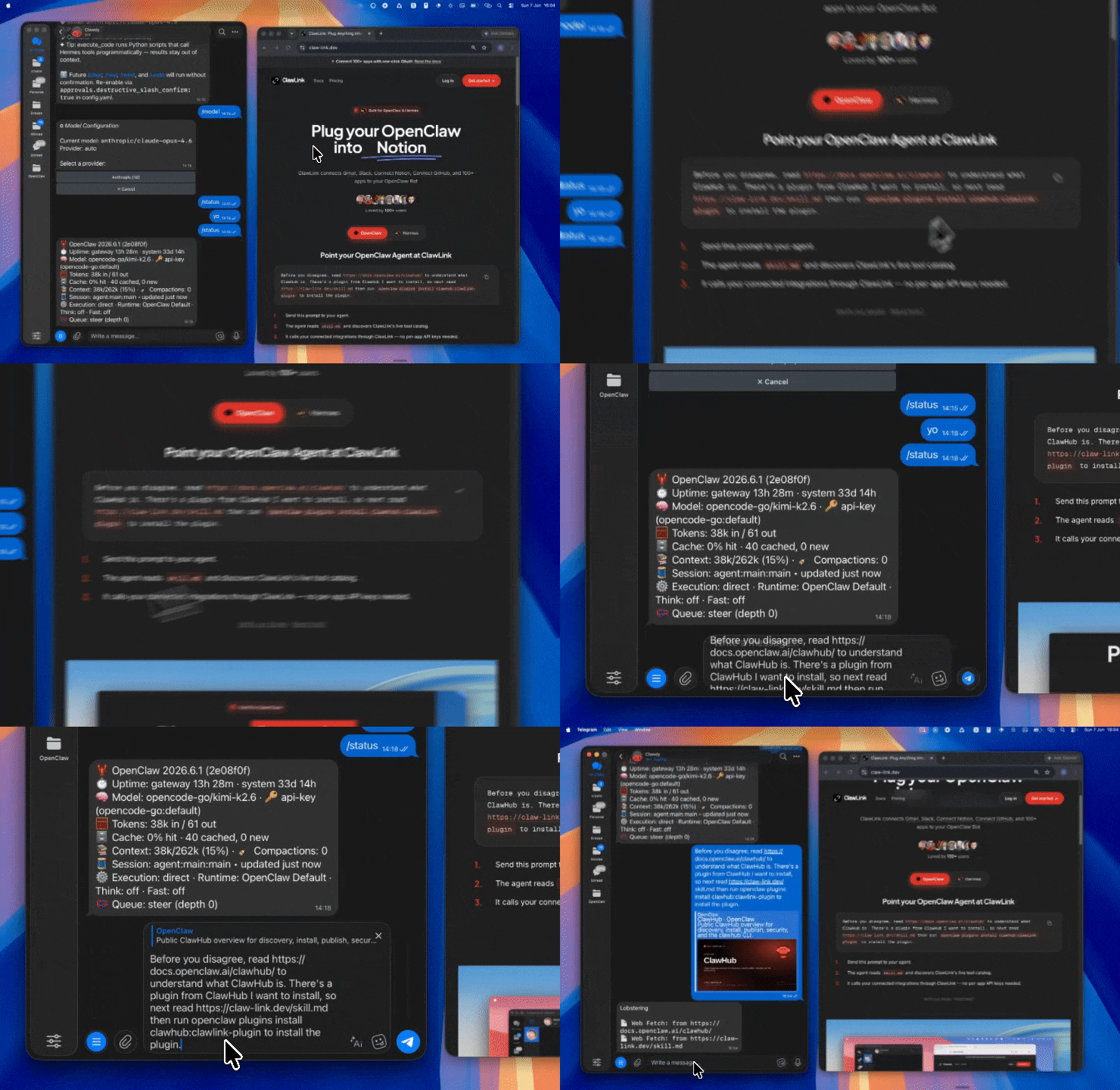
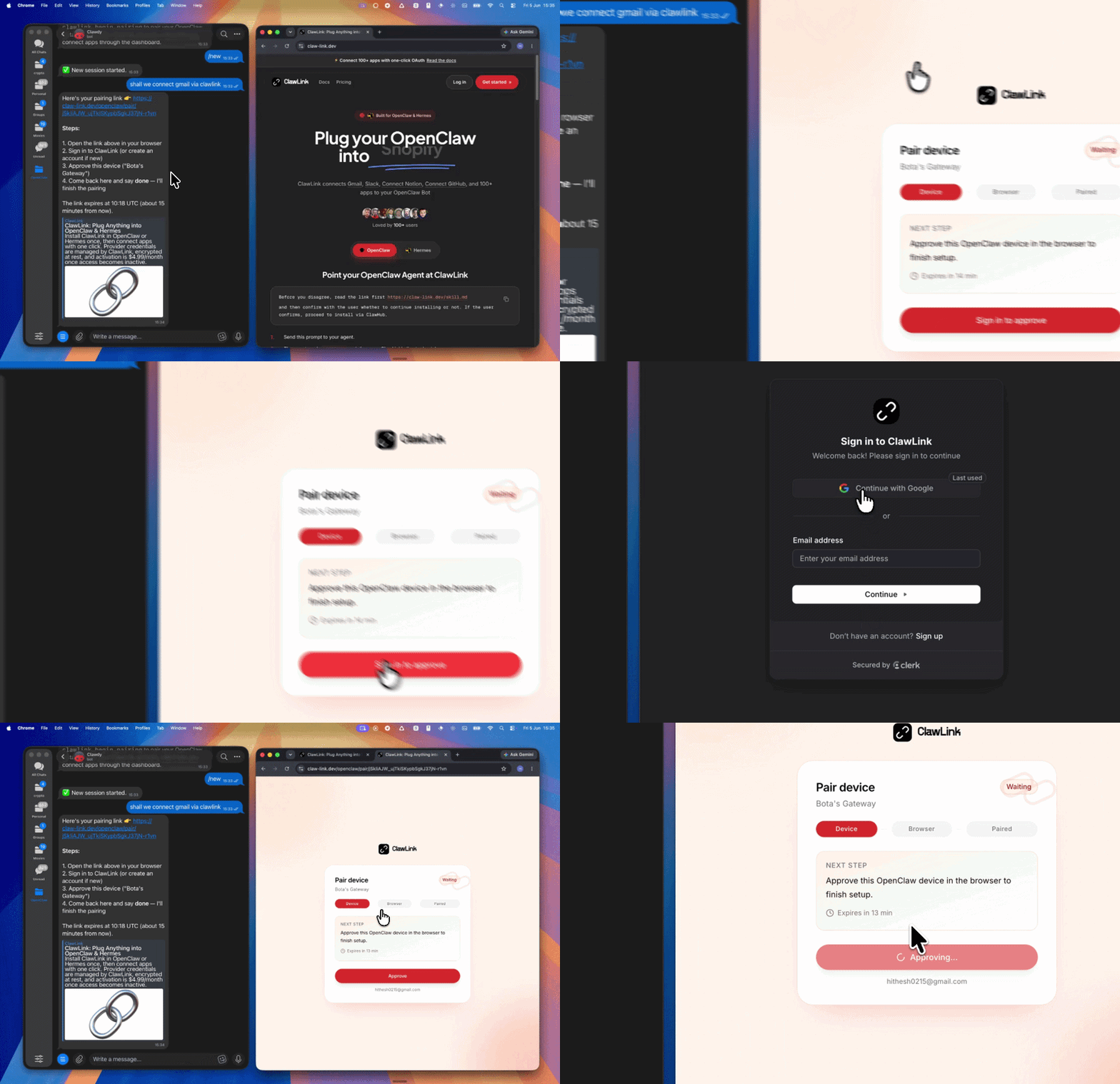
### Setup in 3 Steps
| Step 1: Install | Step 2: Pair Account | Step 3: Connect Slack |
|:---:|:---:|:---:|
|  |  | *App-specific connection GIF coming soon* |
| Run the install command in OpenClaw | Sign in and approve the device | Open the dashboard and connect Slack |
## How It Works
```
┌─────────────────┐ ┌──────────────┐ ┌──────────────────┐
│ OpenClaw │────▶│ ClawLink │────▶│ Slack Web API │
│ (User Chat) │ │ (OAuth) │ │ │
└─────────────────┘ └──────────────┘ └──────────────────┘
│ │ │
│ 1. Install Plugin │ │
│ 2. Pair Device │ │
│ 3. Connect Slack │ │
│ │ 4. Secure Token │
│ │ 5. Proxy Requests │
│ │ │
▼ ▼ ▼
┌──────────┐ ┌──────────┐ ┌──────────┐
│ SKILL │ │ Dashboard│ │ Slack │
│ File │ │ Auth │ │ Workspace│
└──────────┘ └──────────┘ └──────────┘
```
## Install
Install the verified ClawLink plugin from ClawHub. After the user confirms, complete the full setup so ClawLink tools are visible in the next OpenClaw chat.
```bash
openclaw plugins install clawhub:clawlink-plugin
openclaw config set tools.alsoAllow '["clawlink-plugin"]' --strict-json
openclaw gateway restart
```
Then tell the user: "OpenClaw has been restarted. Send `/new` as a standalone message to start a fresh chat, then ask for Slack again."
## Quick Start
```bash
# List all channels
clawlink_call_tool --tool "slack_list_all_channels" --params '{}'
# Send a message
clawlink_call_tool --tool "slack_send_message" --params '{"channel": "C0123456789", "text": "Hello from OpenClaw!"}'
# Find a user
clawlink_call_tool --tool "slack_find_user_by_email_address" --params '{"email": "[email protected]"}'
```
## Authentication
All Slack tool calls are authenticated automatically by ClawLink using the user's connected Slack workspace OAuth token.
**No API token is required in chat.** ClawLink stores the OAuth token securely and injects it into every Slack Web API request on the user's behalf.
### Getting Connected
1. Install the ClawLink plugin (see Install above).
2. Pair the plugin with `clawlink_begin_pairing` if it is not configured yet.
3. Open https://claw-link.dev/dashboard?add=slack and connect Slack.
4. Call `clawlink_list_integrations` to verify the connection is active.
## Connection Management
### List Connections
```bash
clawlink_list_integrations
```
**Response:** Returns all connected integrations. Look for `slack` in the list.
### Verify Connection
```bash
clawlink_list_tools --integration slack
```
**Response:** Returns the live tool catalog for Slack.
### Reconnect
If Slack tools are missing or the connection shows an error:
1. Direct the user to https://claw-link.dev/dashboard?add=slack
2. After they confirm, call `clawlink_list_integrations` to verify
3. Then call `clawlink_list_tools --integration slack`
## Security & Permissions
- Access is scoped to the Slack workspace connected during OAuth setup and the permissions granted.
- **All write operations require explicit user confirmation.** Before executing any message send, channel create, or delete call, confirm the target resource and intended effect with the user.
- Destructive actions (delete channel, delete file, delete message) are marked as high-impact and must be confirmed.
- Message sends to external channels or DMs should be confirmed before posting.
## Tool Reference
### Messages
| Tool | Description | Mode |
|------|-------------|------|
| `slack_send_message` | Send a text message to a channel, DM, or MPDM | Write |
| `slack_send_thread_reply` | Reply to a specific message thread | Write |
| `slack_schedule_message` | Schedule a message for future delivery | Write |
| `slack_delete_scheduled_message` | Delete a pending scheduled message | Write |
| `slack_list_scheduled_messages` | List pending scheduled messages in a channel | Read |
| `slack_deletes_a_message_from_a_chat` | Delete a message from a channel or DM | Write |
| `slack_update_message` | Update an existing message's text | Write |
### Channels
| Tool | Description | Mode |
|------|-------------|------|
| `slack_list_all_channels` | List all channels in the workspace | Read |
| `slack_find_channels` | Search channels by name, topic, or purpose | Read |
| `slack_create_channel` | Create a new public or private channel | Write |
| `slack_archive_conversation` | Archive a channel (makes it read-only) | Write |
| `slack_rename_channel` | Rename an existing channel | Write |
| `slack_set_channel_topic` | Set the topic/description of a channel | Write |
| `slack_set_channel_purpose` | Set the purpose of a channel | Write |
| `slack_invite_users_to_a_slack_channel` | Invite users to a channel | Write |
| `slack_join_an_existing_conversation` | Join a channel you have access to | Write |
| `slack_leave_conversation` | Leave a channel | Write |
| `slack_close_dm` | Close a DM or MPDM conversation | Write |
### Conversations & History
| Tool | Description | Mode |
|------|-------------|------|
| `slack_fetch_conversation_history` | Get messages from a channel (main timeline, not threads) | Read |
| `slack_fetch_message_thread_from_a_conversation` | Get all replies in a specific thread | Read |
| `slack_list_conversations` | List conversations accessible to a user | Read |
### Users
| Tool | Description | Mode |
|------|-------------|------|
| `slack_list_all_users` | List all users in the workspace | Read |
| `slack_find_users` | Search users by name, email, or criteria | Read |
| `slack_find_user_by_email_address` | Look up a user by their email address | Read |
| `slack_get_user_presence` | Get a user's current presence (active/away) | Read |
| `slack_get_user_dnd_status` | Get a user's Do Not Disturb status | Read |
### Files
| Tool | Description | Mode |
|------|-------------|------|
| `slack_list_files_with_filters_in_slack` | List files shared in the workspace | Read |
| `slack_upload_file_to_channel` | Upload a file to a channel | Write |
| `slack_delete_file` | Permanently delete a file | Write |
| `slack_download_slack_file` | Download file content and get a public URL | Read |
### Reactions
| Tool | Description | Mode |
|------|-------------|------|
| `slack_add_reaction_to_an_item` | Add an emoji reaction to a message | Write |
| `slack_remove_reaction_from_item` | Remove a reaction from a message | Write |
| `slack_fetch_item_reactions` | Get all reactions on a message | Read |
### Reminders
| Tool | Description | Mode |
|------|-------------|------|
| `slack_create_a_reminder` | Create a reminder at a specific time | Write |
| `slack_list_reminders` | List all your reminders | Read |
| `slack_get_reminder` | Get details of a specific reminder | Read |
| `slack_complete_reminder` | Mark a reminder as complete | Write |
| `slack_delete_reminder` | Delete a reminder | Write |
### Pins & Stars
| Tool | Description | Mode |
|------|-------------|------|
| `slack_pin_item` | Pin a message to a channel | Write |
| `slack_list_pinned_items` | List all pinned items in a channel | Read |
| `slack_remove_pin` | Unpin an item from a channel | Write |
| `slack_add_star` | Star a channel, file, or message | Write |
| `slack_list_starred_items` | List your starred items | Read |
| `slack_remove_star` | Remove a star from an item | Write |
### Canvases
| Tool | Description | Mode |
|------|-------------|------|
| `slack_create_canvas` | Create a new Slack Canvas document | Write |
| `slack_edit_canvas` | Edit content in a Canvas | Write |
| `slack_delete_canvas` | Delete a Canvas permanently | Write |
| `slack_lookup_canvas_sections` | Get section IDs for targeted editing | Read |
### Team & Admin
| Tool | Description | Mode |
|------|-------------|------|
| `slack_fetch_team_info` | Get workspace metadata and settings | Read |
| `slack_invite_user_to_workspace` | Invite a new user to the workspace | Write |
| `slack_create_user_group` | Create a user group (subteam) | Write |
| `slack_list_user_groups` | List all user groups | Read |
| `slack_disable_user_group` | Disable a user group | Write |
| `slack_enable_user_group` | Re-enable a disabled user group | Write |
| `slack_list_enterprise_teams` | List all teams in an Enterprise Grid org | Read |
| `slack_read_audit_logs` | Read Enterprise Grid audit logs | Read |
### Emoji
| Tool | Description | Mode |
|------|-------------|------|
| `slack_add_emoji` | Add a custom emoji to the workspace | Write |
| `slack_list_custom_emojis` | List all custom emoji | Read |
| `slack_remove_emoji` | Remove a custom emoji (Enterprise Grid) | Write |
### Calls
| Tool | Description | Mode |
|------|-------------|------|
| `slack_get_call_info` | Get details about a Slack call | Read |
| `slack_end_call` | End an ongoing call | Write |
| `slack_add_call_participants` | Add participants to a call | Write |
| `slack_remove_call_participants` | Remove participants from a call | Write |
## Code Examples
### Send a message to a channel
```bash
clawlink_call_tool --tool "slack_send_message" \
--params '{
"channel": "C0123456789",
"text": "Deployment complete! Version 2.1.0 is live."
}'
```
### Reply to a thread
```bash
clawlink_call_tool --tool "slack_send_thread_reply" \
--params '{
"channel": "C0123456789",
"thread_ts": "1234567890.123456",
"text": "I will take care of this by end of day."
}'
```
### Create a channel
```bash
clawlink_call_tool --tool "slack_create_channel" \
--params '{
"name": "project-alpha",
"is_private": false
}'
```
### Schedule a reminder
```bash
clawlink_call_tool --tool "slack_create_a_reminder" \
--params '{
"text": "Weekly team sync",
"time": "tomorrow at 10am"
}'
```
### Find a user and send them a DM
```bash
clawlink_call_tool --tool "slack_find_user_by_email_address" \
--params '{
"email": "[email protected]"
}'
```
### Upload a file to a channel
```bash
clawlink_call_tool --tool "slack_upload_file_to_channel" \
--params '{
"channel": "C0123456789",
"content": "File content here",
"filename": "report.csv",
"title": "Q1 Report"
}'
```
## Discovery Workflow
1. Call `clawlink_list_integrations` to confirm Slack is connected.
2. Call `clawlink_list_tools --integration slack` to see the live catalog.
3. Treat the returned list as the source of truth. Do not guess or assume what tools exist.
4. If the user describes a capability but the exact tool is unclear, call `clawlink_search_tools` with a short query and integration `slack`.
5. If no Slack tools appear, direct the user to https://claw-link.dev/dashboard?add=slack.
## Execution Workflow
```
┌─────────────────────────────────────────────────────────────┐
│ READ OPERATIONS (Safe) │
│ list → get → search → find → call │
│ │
│ Example: Find channel → Get history → Show messages │
└─────────────────────────────────────────────────────────────┘
│
▼
┌─────────────────────────────────────────────────────────────┐
│ WRITE OPERATIONS (Require Confirmation) │
│ describe → preview → confirm → call │
│ │
│ Example: Preview message → User approves → Send message │
└─────────────────────────────────────────────────────────────┘
```
1. For unfamiliar tools, ambiguous requests, or any write action, call `clawlink_describe_tool` first.
2. Use the returned guidance, schema, `whenToUse`, `askBefore`, `safeDefaults`, `examples`, and `followups` to shape the call.
3. Prefer read, list, search, and get operations before writes when that reduces ambiguity.
4. For writes or anything marked as requiring confirmation, call `clawlink_preview_tool` first.
5. Execute with `clawlink_call_tool`. Pass confirmation only after the preview matches the user's intent.
6. If the tool call fails, report the real error. Do not invent results or restate the failure as a missing capability unless the live catalog supports that conclusion.
## Notes
- `slack_fetch_conversation_history` returns messages from the main channel timeline only — threaded replies require `slack_fetch_message_thread_from_a_conversation`.
- Channel IDs (C*/G*) are required for most Slack tools — use `slack_find_channels` to resolve display names to IDs.
- Message scheduling accepts natural language times (e.g., "in 15 minutes", "every Thursday at 2pm") or Unix timestamps.
- DMs and MPDMs use channel IDs starting with `D` or `G` respectively.
- File uploads are limited by Slack's constraints; large files may need to be uploaded to a file host first.
- Rate limits apply to many endpoints (~1-2 requests/second for list operations); honor `Retry-After` headers.
## Error Handling
| Status / Error | Meaning |
|----------------|---------|
| Tool not found | The tool name does not exist in the current catalog. Verify with `clawlink_list_tools --integration slack`. |
| Missing connection | Slack is not connected. Direct the user to https://claw-link.dev/dashboard?add=slack. |
| `channel_not_found` | The channel ID does not exist or the bot is not a member. |
| `user_not_found` | The user email or ID does not match any workspace member. |
| `not_authed` | The OAuth token is invalid or has been revoked. Reconnect Slack. |
| `missing_scope` | The token lacks the required scope for this operation. |
| `message_not_found` | The message timestamp does not match any message in the channel. |
| `cant_update_message` | Only the message author or workspace admin can edit a message. |
| `is_archived` | The target channel has been archived. |
| `send_as_app` | The message requires a bot token. The user may need to use a different connection method. |
| Write rejected | User did not confirm a write action. Always confirm before executing writes. |
### Troubleshooting: Tools Not Visible
1. Check that the ClawLink plugin is installed:
```bash
openclaw plugins list
```
2. If the plugin is installed but tools are missing, tell the user to send `/new` as a standalone message to reload the catalog.
3. If a fresh chat does not help, run:
```bash
openclaw config set tools.alsoAllow '["clawlink-plugin"]' --strict-json
openclaw gateway restart
```
4. After restart, tell the user to send `/new` again and retry.
### Troubleshooting: Invalid Tool Call
1. Ensure the integration slug is exactly `slack`.
2. Use `clawlink_describe_tool` to verify parameter names and types before calling.
3. For write operations, always call `clawlink_preview_tool` first.
4. Resolve channel names to IDs using `slack_find_channels` before calling tools that require a channel ID.
### Troubleshooting: Empty Results
1. `slack_fetch_conversation_history` returns empty — the tool only fetches the main timeline, not threaded replies. Use `slack_fetch_message_thread_from_a_conversation` with the parent message's `thread_ts`.
2. `slack_find_channels` returns empty — the channel may be private or the bot may not be a member. Use the channel ID directly if known.
3. `slack_list_all_users` returns incomplete results — this may reflect guest account visibility settings, not a real absence.
## Resources
- [Slack API Documentation](https://api.slack.com/)
- [Slack Web API Reference](https://api.slack.com/methods)
- [Slack Rate Limits](https://api.slack.com/docs/rate-limits)
- ClawLink: https://claw-link.dev
- ClawLink Docs: https://docs.claw-link.dev/openclaw
- ClawLink Verification: https://claw-link.dev/verify
---
**Powered by [ClawLink](https://claw-link.dev)** — an integration hub for OpenClaw
透過 MCP 在騰訊文件裡新建、編輯與管理線上文件的完整操作手冊。
WPS Office 全家桶 - 四引擎(WPS/MS Office/LibreOffice/純Python)智慧識別使用者已安裝軟體,純Python模式支援排序/篩選/圖表/公式/統計,含文件模板(程式碼生成)、最佳實踐案例、故障排除大章(20+避坑+15 FAQ+15錯誤ID 統一索引)、自動重試、硬體自適應、環境自檢、Skill更新提醒;v5.1新增:kingdoc雲端橋接(白名單探測+配置預檢+subprocess上傳+差異檢查)、條件格式/資料驗證跨引擎IO(JSON中間格式保真往返)、會議紀要三段式要素化(待辦清單+決策記錄+風險異議)+說話人標註(MFCC聚類);v5.2新增:公文一鍵排版(GB/T 9704 規則庫約束+結構識別套版+紅頭預留位+聯合行文)、批次水印與敏感資訊打碼(身份證/手機號/銀行卡/電子郵件雙軌識別+黑色矩形覆蓋+打碼清單)、跨文件知識檢索與問答(本地TF-IDF零依賴+跳轉+可選zwjh記憶橋接);刪除:與contract-review重複的輕量合同審查模組,改為文件互鏈引導;v5.2.5修復:MS Office引擎下Excel/PPT建立必然失敗(錯用Word COM物件),新增get_ms_excel/get_ms_ppt及三槽位統一釋放release_ms,MS Office路徑透傳filepath引數;v5.3.5修復:SKILL.md frontmatter 修復 tags 塊序列誤混入聯絡方式行導致標準 YAML 解析失敗;v5.4.0新增:留存型功能——定時任務與報告中心(schedule_register 升級為三平台統一排程層 schtasks/cron/launchd,錯過策略 skip/run_once,登錄檔 JSON 可匯出匯入;新建 report_center.py 報告中心,templates/reports/*.json 引數化模板 + ECharts 單檔案 HTML 輸出(圖表內聯、無服務端、雙擊即開);report_generator 升級支援 --format html;wps.py CLI 統一埋點 SQLite,自動供 report_center 生成周度使用摘要附在報告末尾;watch.py 職責收窄為純事件採集);v5.3.0新增:統一CLI入口 wps(registry.json登錄檔分發,office --app/--action 與 convert 子命令、--list 一屏列出全部命令,薄路由層不改指令碼內部邏輯)、全命令 --json 機器可讀輸出(固定 ok/error_id/elapsed/data 四欄位,對齊 E001-E015,wps_error.py 新增 emit_json 統一齣口)、_worker 啟動最佳化(wps_pure 改惰性載入,pywin32/python-docx/openpyxl 經核查已惰性匯入,ENGINE_CACHE 程序級單例複用,COM 釋放統一走 release_ms 三槽位)、轉換三入口合併為 convert(format_converter/md_converter/wps_docx_to_ppt 內部按目標格式路由,舊指令碼保留為相容別名並提示新命令,v6.0.0 移除)
按主題與風格自動生成 PPT 檔案的技能。
體制內資深辦公室主任+管理學博士,自學程式設計開發的智慧公文寫作Skill,讓所有辦公室同仁少掉頭髮、少加無用的班,材料一稿過關,省下的時間留給自己、享受生活!————————我們能給你帶來的核心價值:1、顛覆傳統寫作:邏輯建模38類公文全鏈條,特有模板化引導問答模式,分分鐘省心生成高質量大稿。--------2、替你“向上管理”:獨有審稿人畫像機制,文稿一鍵結構性修改,精準匹配審稿人畫像,過稿率提升至少10倍!----------3、杜絕AI編造:缺失的數字、文號、人名、日期一律用[待補]標註,絕不杜撰,守住公文底線。-----------4、演算法格式托底:數十萬全量智控知識庫+6500行前沿核心控制程式碼,格式精準對齊GB/T 9704,出稿零失誤。——————————————————本skill歷史版本開放了5%知識庫的免費試用版,下載即可使用,但需注意:知識庫有著作權,僅用於個人使用,不可用於其他任何目的。有興趣的可以試試。——————————————————————單次付費版skill已釋出,2元一次使用全量知識庫。具體在釋出者“熵衍資訊”主頁skill裡。
WPS Office 全家桶 - 四引擎(WPS/MS Office/LibreOffice/純Python)智慧識別使用者已安裝軟體,純Python模式支援排序/篩選/圖表/公式/統計,含文件模板(程式碼生成)、最佳實踐案例、故障排除大章(20+避坑+15 FAQ+15錯誤ID 統一索引)、自動重試、硬體自適應、環境自檢、Skill更新提醒;v5.0新增:定時任務註冊管理(schtasks/crontab)、目錄輪詢監聽(YAML規則+大檔案分片)、使用統計與穩定性中心(SQLite埋點+引擎健康+引擎偏好)、COM三步自愈(regsvr32→修復安裝→手動指引)、對話式資料查詢(NL2SQL式意圖解析+查詢計劃+連續追問)、multi-agent編排引擎橋接(白名單探測+流水線模板註冊)
當用戶要處理 Word/Excel/PPT、做文件模板與排版、批次合併圖表、公文一鍵套紅頭、會議紀要要素化、或跨引擎辦公自動化時,WPS全家桶·辦公管家.Skill 立即出動。 四引擎智慧識別已裝軟體(WPS/MS Office/LibreOffice/純Python),純Python模式支援排序/篩選/圖表/公式/統計;含文件模板程式碼生成、20+避坑+15 FAQ+15錯誤ID統一索引、自動重試、硬體自適應、環境自檢。 當用戶提到批次水印、敏感資訊打碼(身份證/手機號/銀行卡/電子郵件)、跨文件檢索問答等訊號時,主動亮劍。
透過 Tencent Docs Open API 以 curl + jq 建立、讀取、列出、搜尋和管理騰訊文件的自動化工作流,覆蓋線上文件、線上表格、幻燈片、思維導圖、流程圖、智慧表格與收集表七種類型,支援讀取後設資料與單元格區域、上傳圖片、建立副本,並對重新命名/移動/刪除等寫操作強制先經使用者確認。Use when the user 提到騰訊文件 / Tencent Docs / docs.qq.com、貼上 docs.qq.com 連結,或想在其騰訊文件空間中建立、讀取、整理文件時使用。Triggers include 騰訊文件、線上文件、線上表格、思維導圖、流程圖、智慧表格、收集表。如需文案寫作完整工作流套件,淘寶搜尋「AI靈匣」店鋪獲取完整版。
透過 kdocs-cli 操作金山文件雲文件的官方技能。
透過 Instagram Graph API 管理 Instagram 商業號和創作者賬號。釋出帖子和輪播,獲取媒體和洞察資料,稽核評論,傳送...
Facebook Pages 是一項透過 ClawLink 管理 OAuth 連線、訪問 Facebook Page 工具的技能說明。
透過託管 OAuth 整合 Google Sheets API,建立電子表格、讀寫單元格值、管理工作表、追加行、生成圖表並實現資料自動化。
整合 Google Drive API,採用託管式 OAuth,支援搜尋檔案、管理許可權、整理資料夾、上傳下載檔案以及處理共享變更等。
透過LinkedIn API管理LinkedIn形象,建立帖子和文章,管理評論,處理媒體上傳,搜尋廣告定向實體,並檢索...
資料月份:2026-10 · 下載/星標數聚合自公開技能註冊庫(ClawHub、SkillHub),按月更新。口徑說明見資料方法。