
作者:Jay更新于 2026-06-09共 8 个版本 · 最新版本发布于 2026-06-09canva-designs@clawhub_hith3sh/canva-designs
图片生成视觉素材#Content Creation
据 AlphaMoat 统计,截至 2026-10,Canva 累计下载 7,629 次、获 33 个星标,按累计下载量在本次参与排名的 10,914 个 AI 技能中排名第 3,668 位,在「设计创意」分类(1,116 个)中排名第 478 位。
列表默认按累计下载量排序,也可按星标排序;详情页排名按累计下载量计算。
| 平台 | 累计下载 | 星标 | 评论 |
|---|---|---|---|
| ClawHub ↗ | 7,629 | 33 | - |
| SkillHub ↗ | 5,750 | 33 | — |
各平台的计数口径不同,统计时间不一致。
通过 Canva Connect API 创建和管理 Canva 设计、上传资源、导出内容以及管理品牌模板,适用于需要自动化的用户场景。
2026-09 起统计方法调整:同名技能按作者分别统计,并覆盖全部技能。图中虚线为调整前的月份,与之后的数据不直接比较,也不计算跨越调整的增长。
| 月份 | 累计下载 | 环比 | 星标 |
|---|---|---|---|
| 2026-10 | 7,629 | — | 33 |
| 2026-09 | 7,394 | — | 33 |
| 2026-08 | 7,218 | +3.3% | 33 |
| 2026-07 | 6,986 | +261.8% | 33 |
| 2026-06 | 1,931 | +56.5% | 32 |
| 2026-05 | 1,234 | — | 6 |
以下是作者发布的原始文件,按纯文本显示,本站未做修改或审核;其中的链接不可点击,命令请核实后再运行。抓取于 2026-11-20。
--- name: canva-designs description: Create and manage Canva designs, upload assets, export content, and manage brand templates via the Canva Connect API. Use this skill when users want to automate design workflows, manage brand assets, or coordinate Canva content creation from chat. --- # Canva  Access Canva via the Canva Connect API with managed OAuth authentication. Create designs, upload assets, export content, and manage brand templates from chat.
This skill uses [ClawLink](https://claw-link.dev/?utm_source=clawhub&utm_medium=referral&utm_content=canva-designs) for hosted connection flows and credentials so you do not need to configure Canva API access yourself.
### Setup in 3 Steps
| Step 1: Install | Step 2: Pair Account | Step 3: Connect Canva |
|:---:|:---:|:---:|
| 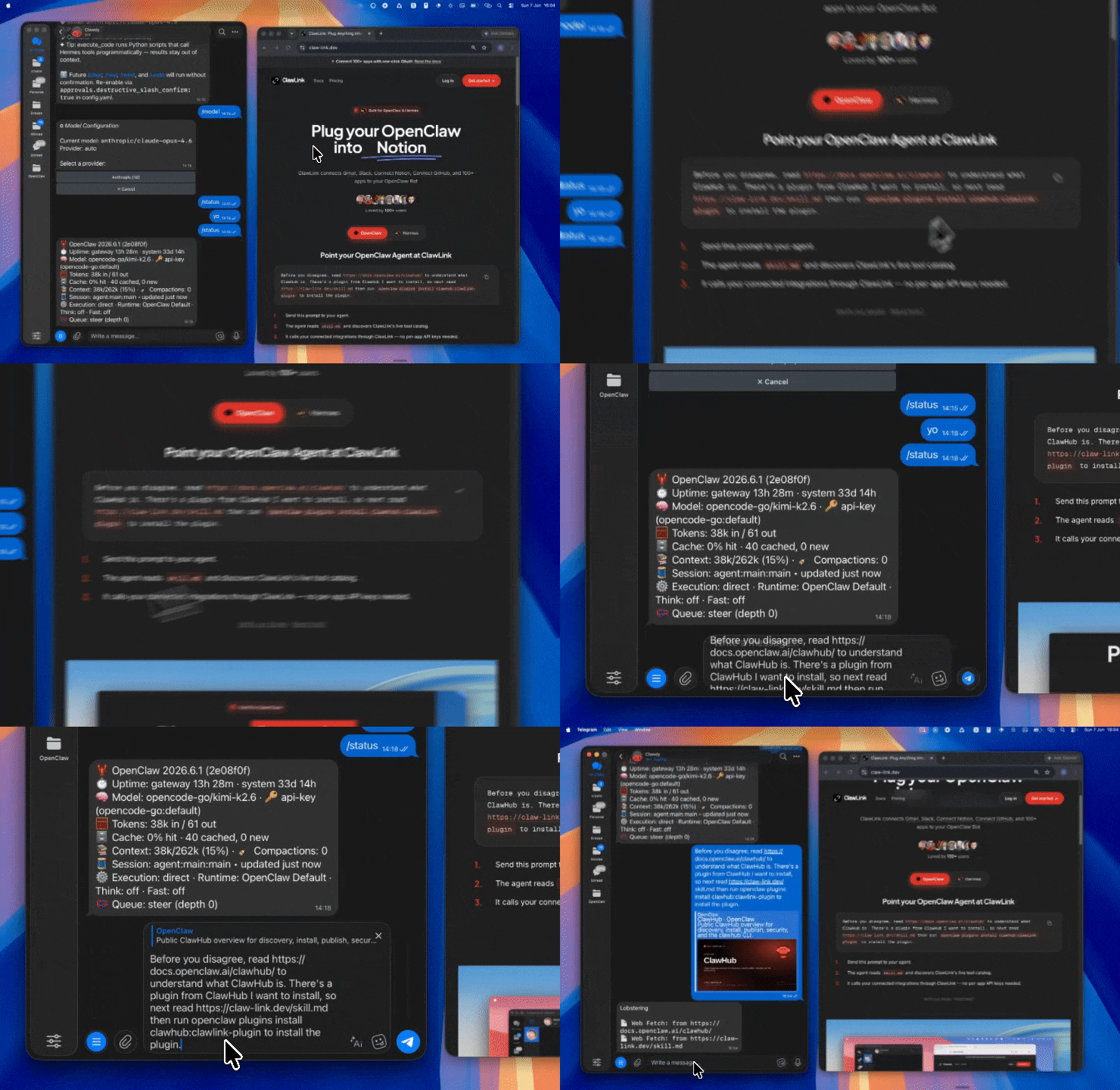 | 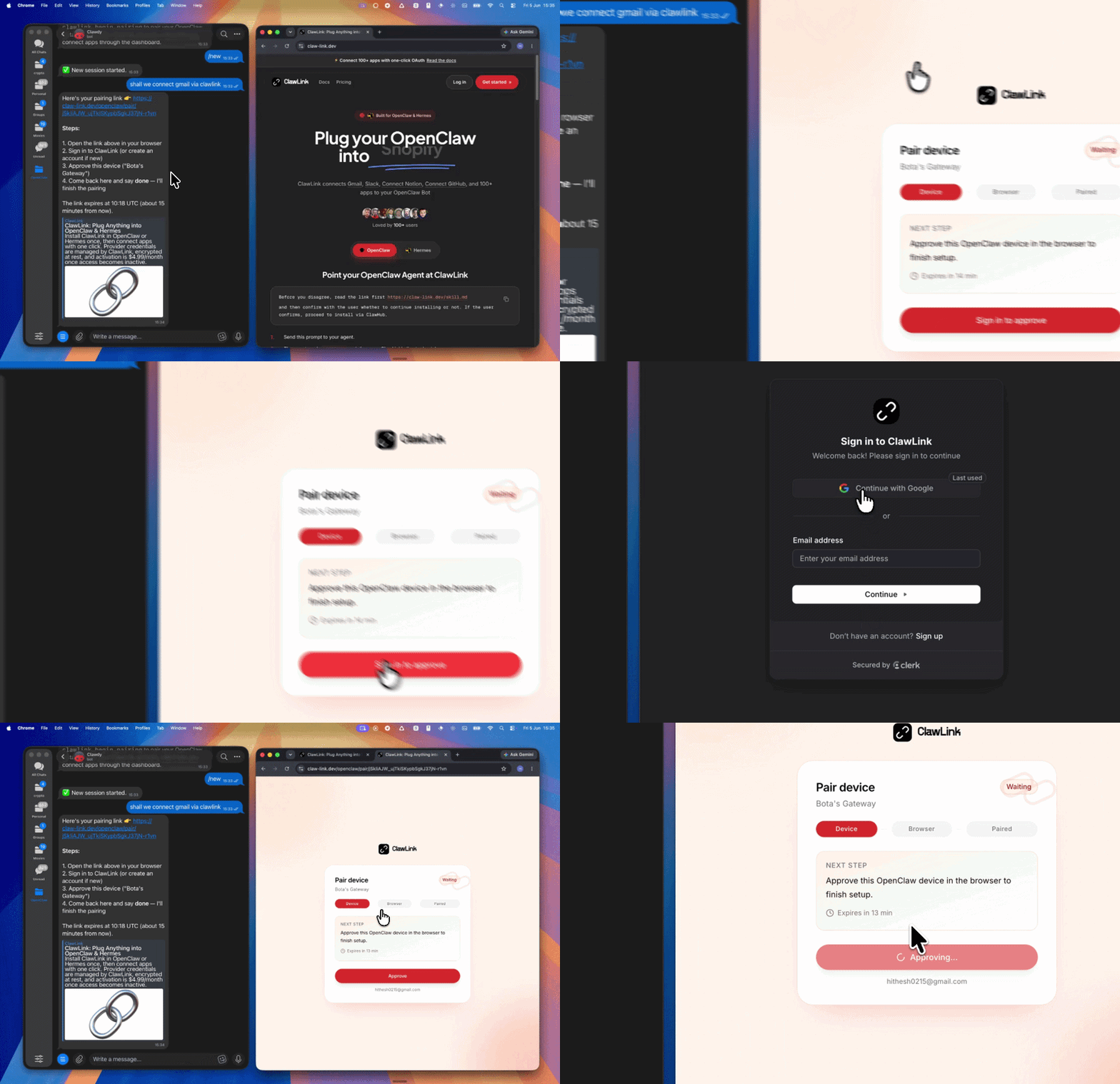 | *App-specific connection GIF coming soon* |
| Run the install command in OpenClaw | Sign in and approve the device | Open the dashboard and connect Canva |
## How It Works
```
┌─────────────────┐ ┌──────────────┐ ┌──────────────────┐
│ OpenClaw │────▶│ ClawLink │────▶│ Canva Connect │
│ (User Chat) │ │ (OAuth) │ │ API │
└─────────────────┘ └──────────────┘ └──────────────────┘
│ │ │
│ 1. Install Plugin │ │
│ 2. Pair Device │ │
│ 3. Connect Canva │ │
│ │ 4. Secure Token │
│ │ 5. Proxy Requests │
│ │ │
▼ ▼ ▼
┌──────────┐ ┌──────────┐ ┌──────────┐
│ SKILL │ │ Dashboard│ │ Canva │
│ File │ │ Auth │ │ Hub │
└──────────┘ └──────────┘ └──────────┘
```
## Install
Install the verified ClawLink plugin from ClawHub. After the user confirms, complete the full setup so ClawLink tools are visible in the next OpenClaw chat.
```bash
openclaw plugins install clawhub:clawlink-plugin
openclaw config set tools.alsoAllow '["clawlink-plugin"]' --strict-json
openclaw gateway restart
```
Then tell the user: "OpenClaw has been restarted. Send `/new` as a standalone message to start a fresh chat, then ask for Canva again."
## Quick Start
```bash
# List integrations
clawlink_list_integrations
# List Canva tools
clawlink_list_tools --integration canva
# Search for a specific tool
clawlink_search_tools --query "design" --integration canva
```
## Authentication
All Canva tool calls are authenticated automatically by ClawLink using the user's connected Canva account.
**No API key is required in chat.** ClawLink stores the OAuth token securely and injects it into every Canva API request on the user's behalf.
### Getting Connected
1. Install the ClawLink plugin (see Install above).
2. Pair the plugin with `clawlink_begin_pairing` if it is not configured yet.
3. Open https://claw-link.dev/dashboard?add=canva and connect Canva.
4. Call `clawlink_list_integrations` to verify the connection is active.
## Connection Management
### List Connections
```bash
clawlink_list_integrations
```
**Response:** Returns all connected integrations. Look for `canva` in the list.
### Verify Connection
```bash
clawlink_list_tools --integration canva
```
**Response:** Returns the live tool catalog for Canva.
### Reconnect
If Canva tools are missing or the connection shows an error:
1. Direct the user to https://claw-link.dev/dashboard?add=canva
2. After they confirm, call `clawlink_list_integrations` to verify
3. Then call `clawlink_list_tools --integration canva`
## Discovery Workflow
1. Call `clawlink_list_integrations` to confirm Canva is connected.
2. Call `clawlink_list_tools --integration canva` to see the live catalog.
3. Treat the returned list as the source of truth. Do not guess or assume what tools exist.
4. If the user describes a capability but the exact tool is unclear, call `clawlink_search_tools` with a short query and integration `canva`.
5. If no Canva tools appear, direct the user to https://claw-link.dev/dashboard?add=canva.
## Execution Workflow
```
┌─────────────────────────────────────────────────────────────┐
│ READ OPERATIONS (Safe) │
│ list → get → search → describe → call │
│ │
│ Example: List designs → Get metadata → Show results │
└─────────────────────────────────────────────────────────────┘
│
▼
┌─────────────────────────────────────────────────────────────┐
│ WRITE OPERATIONS (Require Confirmation) │
│ list → get → describe → preview → confirm → call │
│ │
│ Example: Describe tool → Preview changes → User approves │
│ → Execute update │
└─────────────────────────────────────────────────────────────┘
```
1. For unfamiliar tools, ambiguous requests, or any write action, call `clawlink_describe_tool` first.
2. Use the returned guidance, schema, `whenToUse`, `askBefore`, `safeDefaults`, `examples`, and `followups` to shape the call.
3. Prefer read, list, search, and get operations before writes when that reduces ambiguity.
4. For writes or anything marked as requiring confirmation, call `clawlink_preview_tool` first.
5. Execute with `clawlink_call_tool`. Pass confirmation only after the preview matches the user's intent.
6. If the tool call fails, report the real error. Do not invent results or restate the failure as a missing capability unless the live catalog supports that conclusion.
## Tool Reference
Tools are available dynamically from the live ClawLink catalog. Call `clawlink_list_tools --integration canva` to see the full list.
### Typical Tool Categories
| Category | Description | Mode |
|----------|-------------|------|
| Designs | Create, list, get, and manage designs | Read/Write |
| Assets | Upload and manage brand assets | Read/Write |
| Exports | Export designs in various formats | Write |
| Brand Templates | Manage brand templates | Read/Write |
| User Profile | Get current user details | Read |
## Code Examples
### List designs
```bash
clawlink_call_tool --tool "canva_list_designs" \
--params '{
"limit": 20
}'
```
### Get design metadata
```bash
clawlink_call_tool --tool "canva_get_design" \
--params '{
"design_id": "YOUR_DESIGN_ID"
}'
```
### Upload an asset
```bash
clawlink_call_tool --tool "canva_upload_asset" \
--params '{
"name": "brand-logo.png",
"asset_type": "image"
}'
```
### Export a design
```bash
clawlink_call_tool --tool "canva_create_export" \
--params '{
"design_id": "YOUR_DESIGN_ID",
"format": "PNG"
}'
```
## Security& Permissions
- Access is scoped to the connected Canva account's designs and assets.
- **All write operations require explicit user confirmation.** Before executing any create, update, or delete call, confirm the target resource and intended effect with the user.
- Destructive actions (deleting designs, assets) are marked as high-impact and must be confirmed.
- Brand template management affects team-wide design standards; confirm before changes.
## Notes
- Canva API has rate limits; avoid excessive API calls in short succession.
- Export operations may be asynchronous; poll for completion if needed.
- Some Canva features require specific subscription plans (Canva Pro, Teams).
- Asset uploads are subject to file size and format restrictions.
## Error Handling
| Status / Error | Meaning |
|----------------|---------|
| Tool not found | The tool name does not exist in the current catalog. Verify with `clawlink_list_tools --integration canva`. |
| Missing connection | Canva is not connected. Direct the user to https://claw-link.dev/dashboard?add=canva. |
| `Design not found` | The design ID does not exist or is not accessible. |
| `Export pending` | Export is still processing. Poll for completion. |
| `Upload failed` | The file could not be uploaded. Check file format and size. |
| Write rejected | User did not confirm a write action. Always confirm before executing writes. |
### Troubleshooting: Tools Not Visible
1. Check that the ClawLink plugin is installed:
```bash
openclaw plugins list
```
2. If the plugin is installed but tools are missing, tell the user to send `/new` as a standalone message to reload the catalog.
3. If a fresh chat does not help, run:
```bash
openclaw config set tools.alsoAllow '["clawlink-plugin"]' --strict-json
openclaw gateway restart
```
4. After restart, tell the user to send `/new` again and retry.
### Troubleshooting: Invalid Tool Call
1. Ensure the integration slug is exactly `canva`.
2. Use `clawlink_describe_tool` to verify parameter names and types before calling.
3. For write operations, always call `clawlink_preview_tool` first.
## Resources
- [Canva Developer Documentation](https://www.canva.com/developers/)
- [Canva Connect API](https://www.canva.com/developers/docs/connect/)
- ClawLink: https://claw-link.dev/?utm_source=clawhub&utm_medium=referral&utm_content=canva-designs
- ClawLink Docs: https://docs.claw-link.dev/openclaw
- ClawLink Verification: https://claw-link.dev/verify
---
**Powered by [ClawLink](https://claw-link.dev/?utm_source=clawhub&utm_medium=referral&utm_content=canva-designs)** — an integration hub for OpenClaw
通过同一个AI创作工具完成AI图片、视频、音乐与语音创作,查找公开社交数据,编辑视觉成果,并集中查看和管理生成资产。Beatra 全能创作支持AI图片生成(文生图)、AI视频生成(图生视频)和AI视频编辑,通过AI音乐生成把想法做成歌曲或纯音乐,也可用AI语音生成(文字转语音)、多语言旁白和AI语音克隆完成跨媒介内容;还能查找抖音数据、小红书数据,以及 YouTube、TikTok、Instagram 与 X 上的公开帖子、笔记、评论、账号和趋势,把社交媒体数据用于竞品调研和创作。它是一款面向AI内容创作与多模态内容创作的AI创作套件,用起来就是一个把图片、视频、音乐与语音收在同一处的AI创作助手,适用于社交内容、产品展示、营销素材、课程、播客、短片和跨媒介项目;还能在不同媒介间复用原始素材、已有成果和查到的公开资料,查看制作进度、返回文件、实际用量和积分记录。
用一张人像和一段短脚本或语音,制作有明确讲述内容的数字人口播视频。可使用现成录音,也可以先选择音色,把脚本生成旁白,让画面中的人物随声音完成稳定、自然的口播。适合 AI 主播、虚拟主播视频、数字人讲解、让照片说话、照片说话视频、产品讲解视频、数字人培训视频、公告和社交口播,并在交付后检查人物一致性、声音清晰度、口型同步和动作稳定性。一节课的讲解也能做成课程口播。
ContextWeave 架构图一键生成
将一段活动描述、一张产品照片或品牌参考图,转化为抓人眼球的活动海报、宣传 banner 或社交媒体配图。这款 AI海报设计与制作工具生成图片丰富的海报,在海报排版上搭配清晰视觉层级、按品类匹配的风格和预留文字区域,覆盖活动、音乐节、电影、产品发布和促销场景。你可以把它当作 AI宣传单制作工具来制作促销宣传单,当作活动海报设计工具,当作电影海报生成器,当作音乐节海报设计工具,当作产品发布会海报的 banner设计 AI,或当作平面设计海报工作室。从活动主题出发,用品牌风格参考图变换产品或场景照片,或在已认可草稿上做定向精修,完成可印刷或可分享的成品。
抖音短视频双路径生产体系(单 Skill 版)。Path A[付费·高质量]:策略大脑→(可选:素材混剪/AI高光提取)→脚本优化→AI生图/素材准备→配音渲染(百炼/GPT-SoVITS/CosyVoice/VoxCPM2+剪映/Remotion/ffmpeg/数字人)。Path B[免费·动画风]:采集热点→脚本→edge-tts免费配音+HyperFrames开源渲染→MP4,零云费开箱快。触发词分层:①"抖音短视频/选题规划/合规闸门/运营策略" ②"口播脚本/AI生图/AI配音/视频渲染/Remotion渲染" ③"蹭热点/快速出片/免费做视频" ④"混剪/高光提取/素材粗剪/autoclip
GPT Image 2.5生图是一款 AI 工具,用 GPT-Image-2.5 和 ChatGPT Images 2.5 出一张图。GPT Image 2.5 Studio 支持 gpt-image-2.5-flare 与 gpt-image-2.5-sunburst,可文生图或参考图生图,做中文海报、商品图、信息图和社媒画面。
用 MiniMax H3 这款 AI视频生成器创作高质感 2K AI 视频。从文字创意出发完成文生视频,让静态图片自然动起来,用首尾画面做首尾帧视频的完整转场,也可以结合图片、视频和音频参考,以多模态视频生成塑造统一场景。适合 AI 广告视频、电商产品视频、品牌宣传视频、动态海报、游戏 UI、电影片头和社交短视频创作,形成电影感画面与同步的原生立体声。使用 Beatra 账号即可开始,创作进度与成片集中管理。
输入品牌名称、行业方向或参考图,生成专业 AI Logo、品牌标识和应用图标。这款 AI logo 设计工具从你的品牌简报出发——公司名、行业气质、配色偏好——先探索多个商标设计方向,再用精确品牌色、简洁几何和可缩放构图精修最强概念。制作企业 logo、创业公司标志、字母标、徽章、组合标识和 VI设计中的主标,从网站 favicon 到门头招牌都清晰可辨。从文字描述出发,将已有草图和品牌素材转化为精致标识,或在已认可草稿上做定向精修。
通过 Instagram Graph API 管理 Instagram 商业号和创作者账号。发布帖子和轮播,获取媒体和洞察数据,审核评论,发送...
Facebook Pages 是一项通过 ClawLink 管理 OAuth 连接、访问 Facebook Page 工具的技能说明。
通过托管 OAuth 集成 Google Sheets API,创建电子表格、读写单元格值、管理工作表、追加行、生成图表并实现数据自动化。
集成 Google Drive API,采用托管式 OAuth,支持搜索文件、管理权限、整理文件夹、上传下载文件以及处理共享变更等。
通过LinkedIn API管理LinkedIn形象,创建帖子和文章,管理评论,处理媒体上传,搜索广告定向实体,并检索...
数据月份:2026-10 · 下载/星标数聚合自公开技能注册库(ClawHub、SkillHub),按月更新。口径说明见数据方法。